
What OpenClaw Is
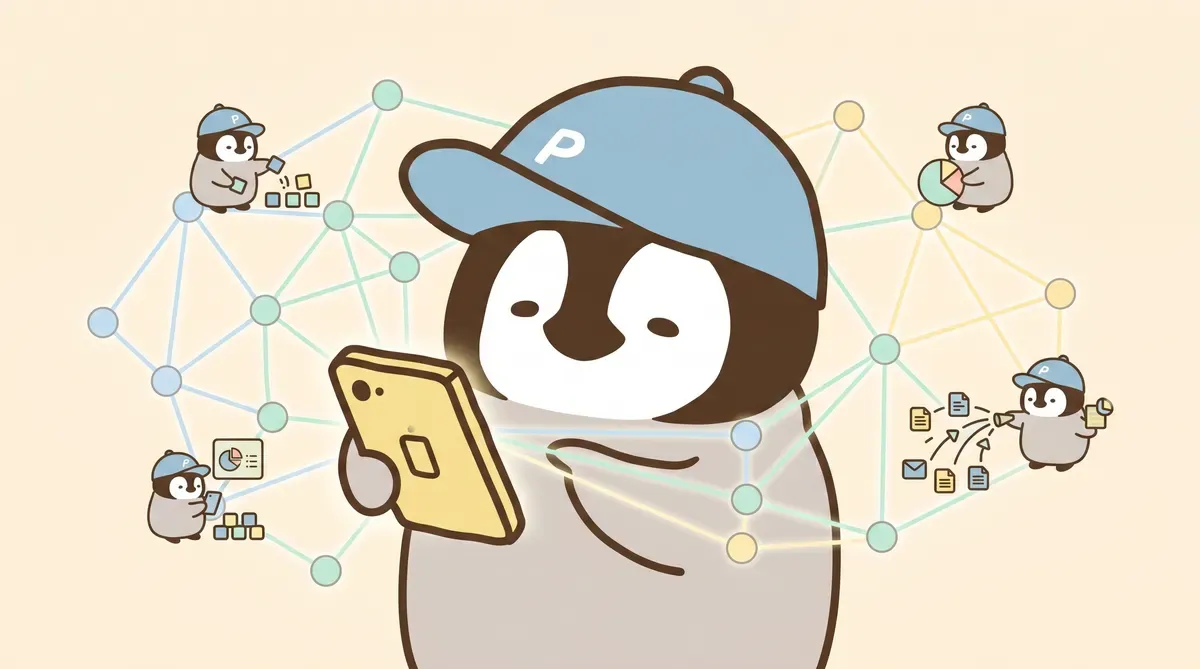
OpenClaw is an open-source framework for a personal AI assistant, positioned as an assistant that “runs on your own device.”
You can think of it as the body of an AI assistant. Besides the body, it still needs a brain and hands/feet to operate.
For the brain, you can use mainstream systems such as ChatGPT and Claude to help OpenClaw think. The difference is that you do not need to open a separate web page or app to talk to it. OpenClaw connects the AI assistant directly into the messaging apps you already use, such as Telegram groups, Discord servers, and iMessage chats, so you interact with it inside those interfaces.
For hands and feet, users can connect many tools, such as browser skills and social publishing skills, to complete tasks. OpenClaw has a Gateway as the control panel for managing connected services.
OpenClaw is an AI assistant that lives on your device and can operate across platforms and devices. OpenClaw’s code is open-source under the MIT License, with public source code that you can modify. The underlying AI model is your choice (ChatGPT subscription, Anthropic, OpenAI API, or a local open-source model). Data stays on your device and is not forced through one vendor’s cloud.
Why It Is Needed
Mainstream AI tools have three common experience problems:
Pain point 1: every AI needs a different app or web page. Want ChatGPT? Open chat.openai.com. Want Claude? Open claude.ai. Want Gemini? Open Google’s interface. Each switch cuts the AI experience away from daily communication and makes interaction feel less natural.
Pain point 2: AI on mobile is not that convenient. Web pages are fine on desktop, but on mobile you either install apps or use a browser, and cross-device sync is not always complete. When you are outside and want AI to handle something, it does not feel as natural as sending a message.
Pain point 3: data is on someone else’s cloud. Accounts, chat history, and uploaded files all enter vendor servers. Privacy and account management become another homework assignment. In some situations, such as medical, financial, or private notes, that friction prevents deeper use.
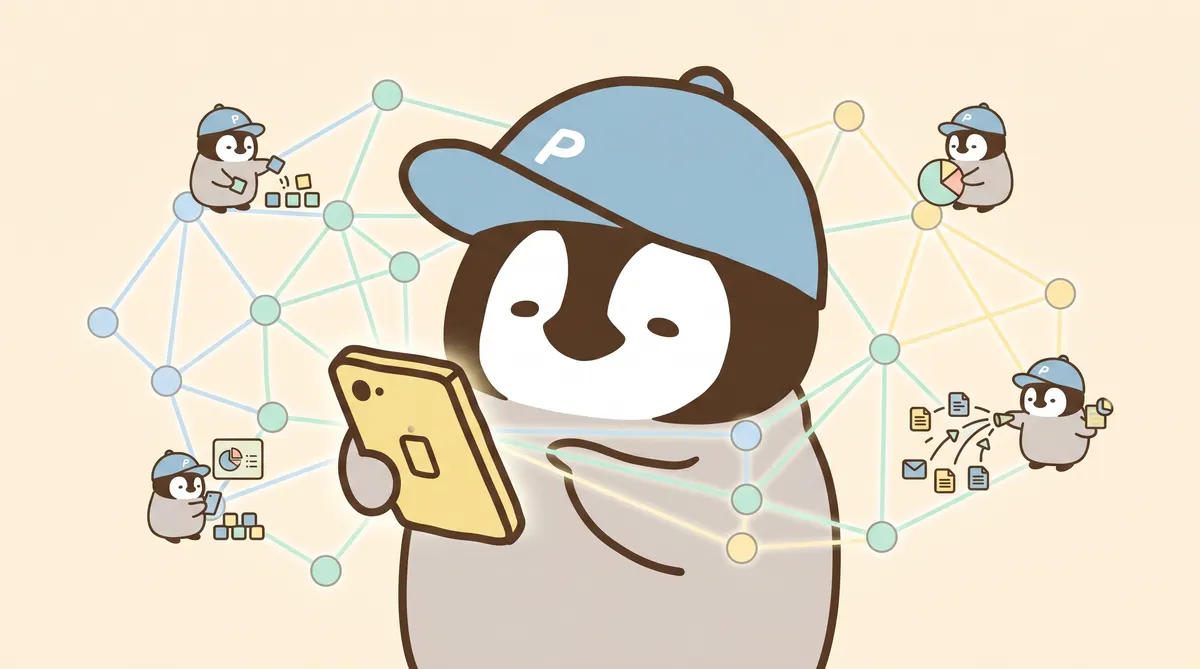
OpenClaw’s answer is to “install the assistant into the environment you already have.” Channels are the messaging apps you already use, memory stays on your own disk, and the underlying AI model is chosen by you. The system feels closer to “you hired an assistant living on your machine” than “you logged into someone else’s web service.”
Six Key Features
1. Multi-Platform Integration
OpenClaw currently supports 24+ messaging platforms. Common ones include WhatsApp, Telegram, Slack, Discord, iMessage, LINE, Microsoft Teams, Signal, Google Chat, Matrix, WeChat, and Feishu.
After setting up a platform, that messaging app gains a contact or bot. The interface for talking to it is the messaging interface you already know. No new app to learn, no new visual switching cost.
Each platform can be configured independently, or multiple platforms can run at the same time and share the same assistant. Ask on Telegram from your phone, handle deep tasks on Discord from desktop, and the memory is shared; the assistant knows you are the same person.
2. Cross-Chat Memory
OpenClaw provides several default workspace template files as the memory foundation across conversations:
- AGENTS.md: operating rules. Write how you want the assistant to work, what it can do, what it must ask first, and which language to reply in.
- SOUL.md: core values and personality. Write the assistant’s personality and bottom lines, which should not change with each chat.
- USER.md: user information. Write who you are, your roles, preferences, and toolchain.
- TOOLS.md: tool settings. Write which tools, APIs, and accounts are available on this machine.
- IDENTITY.md: identity. Write who the assistant is and what role it plays in your life.
These files are read at conversation startup. The assistant does not forget everything and ask who you are each time; it already remembers your preferences and past decisions.
OpenClaw’s default memory system and AI agent memory design are related deep-dive articles.
3. Skills Framework
A skill is a unit for packaging a workflow into a reusable tool.
Example: every morning you want the assistant to organize news with the fixed flow “fetch RSS → filter keywords → summarize → post to Telegram.” After turning this into a skill, next time you only need to say “run morning-news” and it executes automatically. You do not need to re-teach the assistant each time.
Skills can also be shared. The OpenClaw community has ready-made skills you can download and modify. Starting from someone else’s template and adjusting it to your needs is much faster than building from zero.
Adding a capability does not require changing OpenClaw source code. A skill is an independent file. Add it, reload the assistant, and it gains a new ability. This design makes extension much easier than modifying the framework itself.
4. Scheduling Automation (cron job)
OpenClaw supports scheduled tasks, so the assistant can run while you are not there.
Common uses: fetch news every morning at 7, organize weekly commits every Sunday, create a monthly financial report on the 1st, and remind you of tomorrow’s calendar every night. When schedules combine with skills, it is like hiring a 24-hour assistant: during the day it follows your instructions; at night it runs routine tasks on schedule.
Triggers can be time-based or event-based, such as receiving a message in a specific channel or a file being modified. Complex workflows can be scheduled in detail.
5. Live Canvas
Live Canvas is one of OpenClaw’s more distinctive features: the assistant can render and operate on a visible canvas in real time.
It is not only text replies. It can draw, open tables, place buttons, and build interactive UI, so you can see what it is doing and click, modify, or confirm on that surface. For tasks that need visualization, such as data analysis, scheduling, or process breakdown, Canvas is more intuitive than a pure messaging interface.
6. Cross-Device Voice
OpenClaw supports voice input and output on macOS, iOS, Android, and Windows. You can speak to the assistant directly, and it can speak back.
For heavy users, voice is a useful option when hands are busy. Cooking, driving, exercising: typing is inconvenient, speaking is natural.
Who It Fits and Does Not Fit
Good fit:
- People who want AI to stay with them long term and accumulate memory
- Heavy users of messaging software such as Telegram, Discord, or iMessage
- People who care about local data privacy
- People willing to edit configuration files in exchange for long-term workflow integration
- People already using AI who want to integrate it one level deeper into daily life
Not a good fit:
- Light users who only want to ask web AI occasional questions
- People who do not want to touch Terminal or WSL2 at all
- People expecting it to “just become magical after install.” OpenClaw is a cultivation-style tool. Memory and skills grow gradually, and it needs proper maintenance to run long term.
Pros and Cons
Pros
1. Runs inside channels you already use. No new app to learn, minimal interface friction. When multiple channels run together, cross-device experience is smooth.
2. Open-source + local + data under your control. MIT License, public source, workspace and memory on your own disk. More reassuring than cloud SaaS in privacy-sensitive scenarios.
3. Free cross-device voice. macOS / iOS / Android can all use voice directly, without subscribing to another voice service.
Cons
1. Installation and setup have a barrier. Even with the openclaw onboard CLI guide, Windows users are strongly recommended to use WSL2, and you need to edit Markdown config files. People who have never touched Terminal may get stuck.
2. You need to choose the underlying AI model yourself. OpenClaw is a framework, not the AI model. You need to connect Anthropic, OpenAI, or an open-source model. For beginners, this is the first decision.
3. It is designed for heavy users. The tradeoffs favor people willing to spend time raising and tuning it. If you only want to solve one problem in five minutes, web AI is faster.
Three Beginner Steps
When installing OpenClaw for the first time, follow these three steps to avoid getting lost:
Step 1: run openclaw onboard. Type this command in Terminal. The CLI guides you through Gateway, workspace, first channel, and first skill setup. macOS and Linux can run it directly; Windows users should strongly consider WSL2 first.
Step 2: configure the first channel. Telegram is the fastest beginner channel: create a bot, paste the token into OpenClaw, and you can chat with the assistant in Telegram DMs. Discord fits advanced users because its server / channel layers can organize more complex workflows.
Step 3: edit USER.md and SOUL.md. After onboard, the workspace creates template files. Open USER.md and write who you are, your work, and preferences. Open SOUL.md and write the assistant’s personality. The first version does not need to be complete; run it first, then slowly add more.
OpenClaw hands-on install guide has a more detailed step-by-step process. Advanced users already using Claude Code can read OpenClaw x Claude Code Integration Guide and OpenClaw Multi-Agent Collaboration.
Penchan’s Take
Penchan’s OpenClaw mainly runs two channels: Telegram for lightweight scenarios and Discord for heavy scenarios.
Telegram lightweight use: Telegram groups have only one layer. Sending messages in a chat is just sending messages. This fits quick Q&A, one-line lookups, and quick notes. The advantage is fast response, instant push notifications, and tasks that can be finished with one phone reply.
Discord heavy use: Discord’s server structure supports multiple layers (category → channel → thread). That structure can organize deeper workflows: different channels for different projects, project progress inside threads, and separate conversations for different agent types. For users managing many projects long term, Discord’s layering produces much better work records than a single-layer Telegram group.
The most painful part of OpenClaw is memory. Handling memory well and preventing the assistant from forgetting is hard. Penchan’s practical trick is to keep core files clean and concise. That gives the assistant a better chance of remembering important things. Stuffing too much into files buries the important parts and lowers memory quality.
OpenClaw still needs many optimizations, but its positioning is a highly flexible tool. It is not meant for everyone. It makes users happy when they are willing to tinker and tune; it frustrates users who want an out-of-the-box product. Understand that tradeoff before entering.
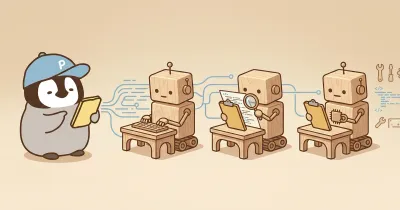
Penchan currently runs a 3-agent architecture on OpenClaw, with different roles handling different task types. This architecture is still being adjusted, and more practical experience will be shared later.
OpenClaw Reading Map
Treat this hub as a map. You do not need to read every supporting article at once.
| Stage | Start with | What it solves |
|---|---|---|
| Beginner | OpenClaw Getting Started | Run onboard, set up the first channel, and create the workspace |
| Multi-agent | OpenClaw Multi-Agent Architecture | Understand how strategy, execution, and review are split |
| Safety | Prompt Shielder / Skill Shielder | Prevent prompts, skills, and config files from being silently changed |
| Operations | AI Workspace Auto-Cleanup | Handle temp files, memory drift, and scheduled-task alerts |
If the AI Agent concept still feels fuzzy, start from the AI Agent guide. If you already use Claude Code, CC Orchestrator connects the architecture to daily practice faster.
Next Step
If this is your first time touching OpenClaw, start with OpenClaw hands-on install guide and get the environment running first.
If you do not yet have a feel for what an AI agent is, read that foundation first, then return to see how OpenClaw lands agents inside daily messaging software.
If you already use Claude Code, read OpenClaw x Claude Code Integration Guide to understand what the combination enables. If you are interested in multi-agent division of labor, read OpenClaw Multi-Agent Collaboration.